HOLIDAY70% OFFHow to organize notes with tags and Pinned
Tags group your notes, Pinned keeps the ones you use most at the top, and the sort order decides the rest. The MemoKey keyboard shows the same tags and Pinned, so a tidy library means fewer taps when you insert a note.
What tags are for
A tag is a label for notes that belong together, such as Work, Addresses or Replies, and a note can have several. Home can show only the notes with one tag, and the MemoKey keyboard shows each tag as a chip, so a group of notes is one tap away.
The free version lets you create up to 10 tags; MemoKey Pro allows as many as you like. If Pro ends, every tag you have stays on your notes and keeps working; Pro is only needed to create a new tag while you have 10 or more.
Set up your tags
1. Open Manage Tags
In MemoKey, go to Settings → Tools → Manage Tags. You can also get there from a note: tap the tag button in the note’s toolbar, then the plus button next to your tags.
2. Create a tag
Type a name in the “Create new tag...” field and tap the plus button. A name can be up to 50 characters. Create the next tags the same way.
3. Tag your notes
Open a note and tap the tag button (Select Tags). Tap each tag the note should have, then Done. Open the same picker again to remove a tag from the note.
4. Show one tag on Home
On Home, tap Search: your tags appear as chips under the search field. Tap a tag to see only its notes, and tap it again to see all of them. What you type in the search field is then searched within that tag.
Rename or delete a tag
In Manage Tags, tap a tag to rename it. Its notes keep the tag under the new name, and the keyboard shows the new name too.
Tap the trash button next to a tag to delete it. After you confirm, the tag is removed from every note that had it; the notes themselves stay.
Two tags can’t share a name. When MemoKey compares names it ignores upper and lower case, spaces at the start or end, and how an accented letter was encoded by the keyboard that typed it, so “Work”, “work” and “ work ” are one name. Accents still count: “Viec” and “Việc” are two different tags.
Merge tags, note counts and the filter box
In Manage Tags, every tag shows how many notes carry it. The counts update after you add, rename, delete or merge a tag.
From MemoKey 3.5 you can merge duplicate tags: tap Merge into… on the tag you no longer want, choose the tag that stays, then confirm. Every note that had the first tag keeps it under the second name — locked notes included — and the first tag is deleted. The notes themselves are not changed.
With more than 10 tags, Manage Tags and the tag picker (Select Tags on a note) also have a filter box at the top. Type part of a name and only the matching tags stay; the filter ignores accents, so “Viec” finds “Việc”.
Browse your notes by tag
Besides the chips under Search, Home has a Tags view. Open the view and sort menu at the top right of Home and choose Tags: you see Pinned, each of your tags and Untagged, each with its number of notes (Pinned and Untagged only when they have notes). Tap one to open its notes, and tap the tags button at the top to go back.
List or Grid in the same menu shows all your notes again. On Android, the Back button first closes the search, then clears the tag filter.
From MemoKey 3.7 you can filter by several tags at once: in search, tap a second tag to see only the notes that have both, and tap one again to take it out. The selected tags move to the front of the strip and show at the bottom of Home as “Tag A · Tag B”; Clear or Android Back shows all notes again.
A shortcut for the same filter: tap a tag on a note’s card to see only the notes with that tag, and tap it again to clear the filter. While a tag filter is on, a new note you add gets that tag, so a list stays complete as it grows.
Pin the notes you use most
Pin a note from its menu on Home (Pin; Unpin undoes it). From MemoKey 3.4 you can also swipe a card to the right in the list view, or long-press a card, select several notes and pin them all at once.
Pinned notes sit in their own Pinned section at the top of Home, above All Notes. Tap the Pinned heading to fold the section and tap it again to open it, so a long list of pinned notes doesn’t push the rest down.
Folding works on the full list only: when you filter by a tag or search, the pinned notes that match always show.
Choose the sort order
Pick the order in the view and sort menu on Home, or in Settings → Languages & Display → Sort Order: Date Modified (Newest), Date Modified (Oldest) or Title (A-Z).
Whatever the order, pinned notes come first, in your own order once you set one (see below). Title (A-Z) follows the alphabet of the app’s language; a note without a title is sorted by the start of its text, and empty notes come last.
Put pinned notes and tags in your own order
From MemoKey 3.6 you can drag your pinned notes and your tags into the order you want. For pinned notes, tap Reorder on the Pinned header of Home, in the list or the grid view; for tags, tap Reorder in Manage Tags. Drag a note or tag by its handle; each move is saved right away.
Home, the keyboards and the widgets follow your order: pinned notes on Home and in the Pinned chip, the tags on Home, in the tag pickers and in the keyboard’s tag chips.
Until you reorder, pinned notes follow the sort order and tags are listed from A to Z. Once you have an order, a note you pin or a tag you create goes to the end of it.
Tags and Pinned in the keyboard
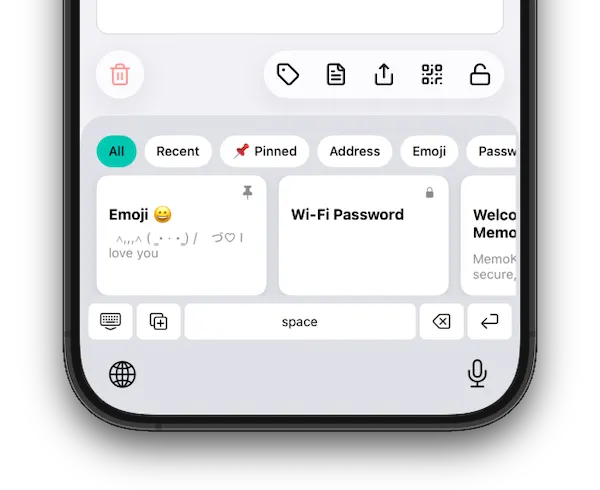
Above the notes, the MemoKey keyboard has a row of chips: All shows every note, Recent the last 10 notes you inserted, Pinned only pinned notes, and then comes one chip per tag, in your tag order. Tap a chip, then a note to insert it.
All, Pinned and the tag chips use the sort order you chose in the app, with pinned notes first in your order. From MemoKey 3.6, Recent lists the last 10 notes you inserted from the keyboard.
From MemoKey 3.12, Open in keyboard when… on a tag (Manage Tags → tap the tag) makes the keyboard open on it in email, phone, web address or number fields, and on Android in the apps you pick.
Still stuck? See the FAQ or Support page.