HOLIDAY70% OFFHow to enable the MemoKey keyboard
MemoKey works as a keyboard, so you turn it on once in your phone settings. Follow the steps for your phone below.
What the keyboard can do
MemoKey is a notes-first keyboard with a tab strip at the top. Notes shows your saved notes, and a tap inserts one into the field you are in; with the app lock on, this is the tab that asks for your passcode.
Keyboard has letters, 123 and a VN key for Vietnamese Telex, so you can type a quick reply without switching keyboards. It has no autocorrect or word suggestions, and nothing you type is stored. Kaomoji inserts kaomoji by category. Draw, on iPhone and iPad only, is a place to sketch.
Keyboard and Kaomoji work while MemoKey is locked and without Full Access. For long writing, your usual keyboard is still the better choice.
Enable MemoKey on iPhone
1. Open the keyboard settings
Open Settings, then General, Keyboard, Keyboards. Tap Add New Keyboard.
2. Add MemoKey
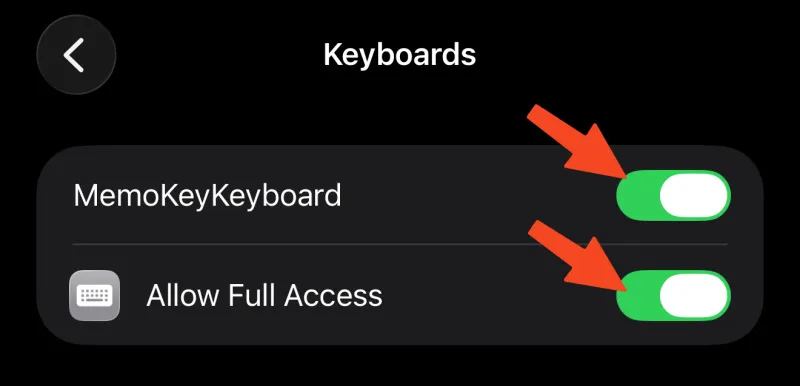
Under Third-Party Keyboards, tap MemoKey. It now appears in your Keyboards list, with its switch turned on.
3. Full Access is optional
Listing and inserting your notes work without Full Access. iPhone asks for it when the keyboard cannot read your notes, for New note from selection, and for the Paste key: it reads the clipboard only when you tap Paste, and the copied text is inserted, never stored. If you need it, tap MemoKey in the Keyboards list and turn on Allow Full Access. MemoKey does not log what you type.
4. Switch to MemoKey
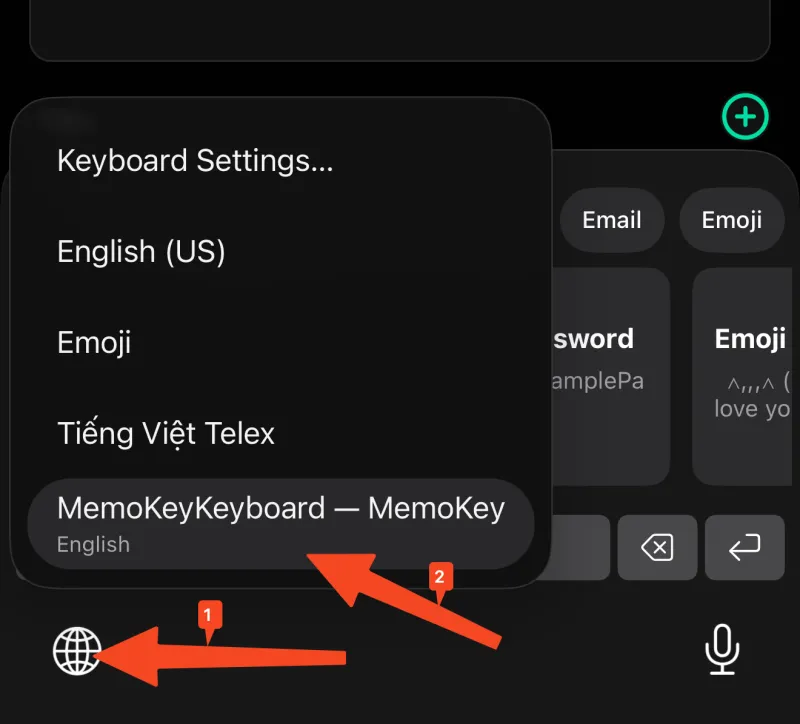
Open any app and tap a text field. Press and hold the globe key, then choose MemoKey.
5. Paste a note
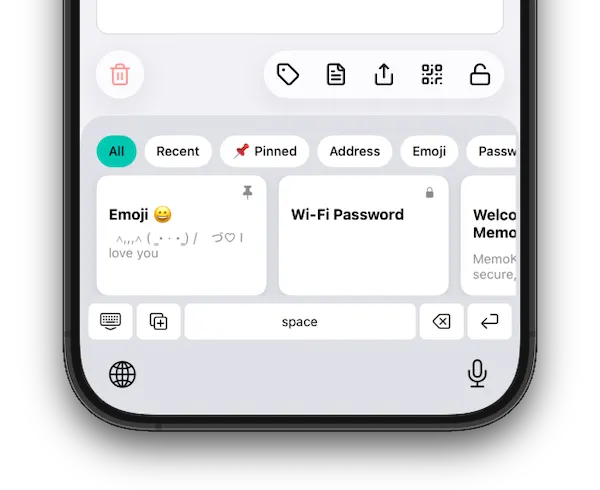
Tap a note to insert it. To keep typing, press the globe key to go back to your usual keyboard.
Enable MemoKey on Android
1. Open the on-screen keyboard settings
Open Settings, then System, Languages & input, On-screen keyboard. Tap Manage on-screen keyboards. Menu names can differ a little between phone brands.
2. Turn on MemoKey
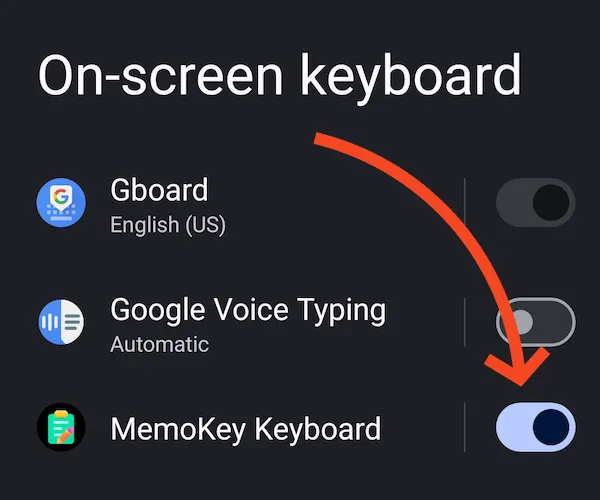
Switch on MemoKey Keyboard in the list.
3. Open the keyboard switcher
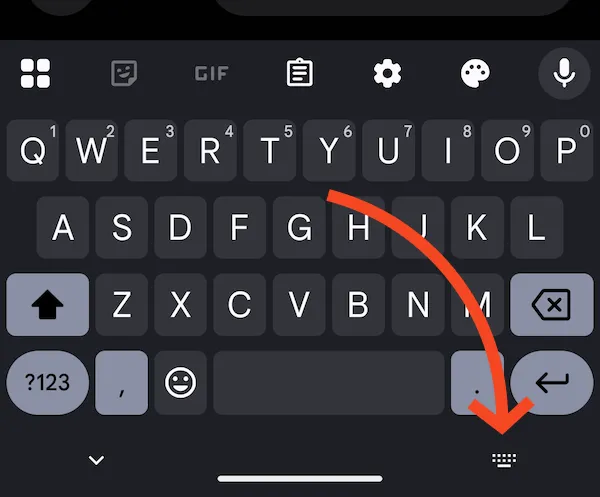
Open any app and tap a text field. Tap the keyboard icon at the bottom right of the screen.
4. Choose MemoKey
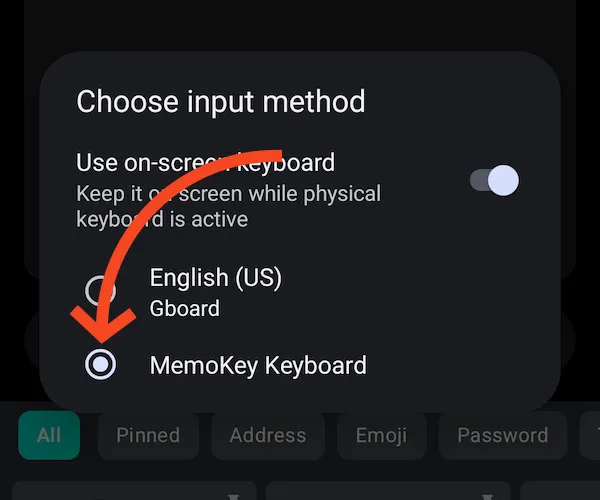
In Choose input method, select MemoKey Keyboard.
5. Paste a note
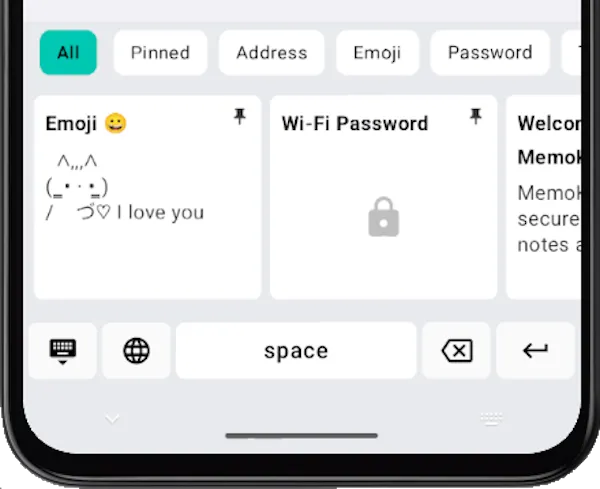
Tap a note to insert it. To keep typing, tap the keyboard icon again and pick your usual keyboard.
The Paste key
On the Notes tab, the bottom row has a Paste key. Tap it to insert what you copied last — a link, an address, any text — right where you type, without leaving the field or switching keyboards.
On iPhone, Paste needs Allow Full Access. Without it, the key shows a notice asking you to turn Full Access on instead of reading the clipboard.
On Android, Paste reads the clipboard only in the moment you tap it. With the app lock on, Paste on both systems first asks for your MemoKey passcode, so nobody can read what you copied while MemoKey is locked.
Save a note from the keyboard
From MemoKey 3.12, keep a reply you just typed as a note without leaving the chat: tap Save note at the end of the chip row on the Notes tab, choose Text before cursor or Clipboard, add a title and a tag if you like, and tap Save. The note shows on the Notes tab with a Pending badge, and you can insert it right away.
The keyboard never writes your notes itself: the note waits on your phone and MemoKey adds it the next time you open the app, with Undo. On iPhone and iPad, Save note needs Allow Full Access. A saved note is never locked, and while MemoKey is locked the keyboard offers Save note only after you enter your passcode.
Fill line by line and more
Fill line by line fills a form field by field from one note, like the Shipping details example: touch and hold the note, tap Fill line by line, then tap Insert once for each field (name, phone, email, address). Only the value after a label such as “Phone:” is inserted, never the label.
From MemoKey 3.14, English words typed with VN on stay as you typed them: “text” no longer becomes “tẽt” when you press space, while Vietnamese words still get their accents, on iPhone and Android. Turn it off in Settings → Keyboard → Auto switch English/Vietnamese. Letters also pop up as you press them, and holding Delete speeds up and then deletes whole words; on iPhone the Keyboard tab uses the iPhone keyboard’s layout, with a #+= page for symbols.
Rewrite what you type with AI
From MemoKey 3.16, the keyboard can rewrite the text you are typing with AI, using your own API key. It is off by default. Open Settings → Keyboard → AI rewrite, turn on AI rewrite in the keyboard and accept the notice. Then choose the Provider (OpenAI-compatible, Anthropic or, from MemoKey 3.17, Google Gemini), paste your API key, enter the Model ID and test the connection. Leave Endpoint URL blank unless you use your own endpoint. You get the key from your provider, and the provider charges you for what you use.
Under Actions you start with Rephrase, Shorter, More professional and More friendly. Tap one to change its Button name or Instruction, use the arrows to reorder them, and tap Add action to make your own, such as “Translate to English” (up to 12).
While typing in any app, select some text or just leave the cursor in the field, open the MemoKey keyboard, tap AI and then an action. The rewritten text replaces yours and is also copied; an Undo chip puts the original back for a few seconds. If the text changed while the AI was working, nothing is replaced and the result waits in your clipboard. On iPhone and iPad, AI rewrite needs Allow Full Access.
If an action fails, the keyboard says why: the API key was refused (check or replace the key), the model or endpoint was not found (check the Model ID and Endpoint URL), the provider’s rate limit or quota was reached (try again later), or there was no connection or no answer within 30 seconds. Only the text you rewrite is sent, straight from your phone to your provider; MemoKey has no server and keeps no copy, your saved notes are never sent, and the key stays on your phone until you remove it.
Tips: placeholders and the keyboard
From MemoKey 3.4, write {date} or {time} in a note: when the keyboard inserts it, they become today’s date and the current time in the app’s language. The saved note keeps {date} and {time}, so it is up to date every time.
From MemoKey 3.6: touch and hold a note to read all of it before inserting. Inserted the wrong one? An Undo chip removes it for about 8 seconds (not when Switch back after inserting is on). The Recent chip lists the last 10 notes you inserted, and the keyboard opens on the chip you used last.
From MemoKey 3.7: in the keyboard’s fill-in fields, the VN key turns on Telex (aa â, ow ơ, dd đ, s f r x j for the tones), so “Vieejt” becomes “Việt”. It is on by default when MemoKey is in Vietnamese. Touch and hold a letter to type it as it is, for an English word, a name or an e-mail address.
The keyboard’s fill-in fields remember the last 5 answers for each field (on your phone only, never for locked notes; touch and hold a chip to forget it; turn off or clear in Settings → Keyboard) and have a Paste key next to 123 that adds the text you copied to the field on one line. On iPhone and iPad, Paste needs Allow Full Access.
The keyboard also inserts kaomoji: the Kaomoji tab shows MemoKey’s kaomoji by category (Happy, Love, Sad and crying, Shrug and table flip, Cat, Bear and more), and a tap inserts one. Recent keeps the last 20 you inserted. It works while MemoKey is locked and, on iPhone and iPad, without Full Access. Turn it off in Settings → Keyboard → Show Kaomoji.
Privacy
The keyboard reads only your MemoKey notes. It does not collect what you type and sends nothing, unless you turn on AI rewrite: then the text you choose to rewrite goes to the AI provider you set up, with your own key. Everything else works offline.
Still stuck? See the FAQ or Support page.